
How to Make Grok Imagine Video Longer: 3 Ways That Work
Grok Imagine Video is not stuck at 6 seconds. Pick 10 or 15 seconds, extend an existing clip, or restart from the last frame. Real times, costs and limits.
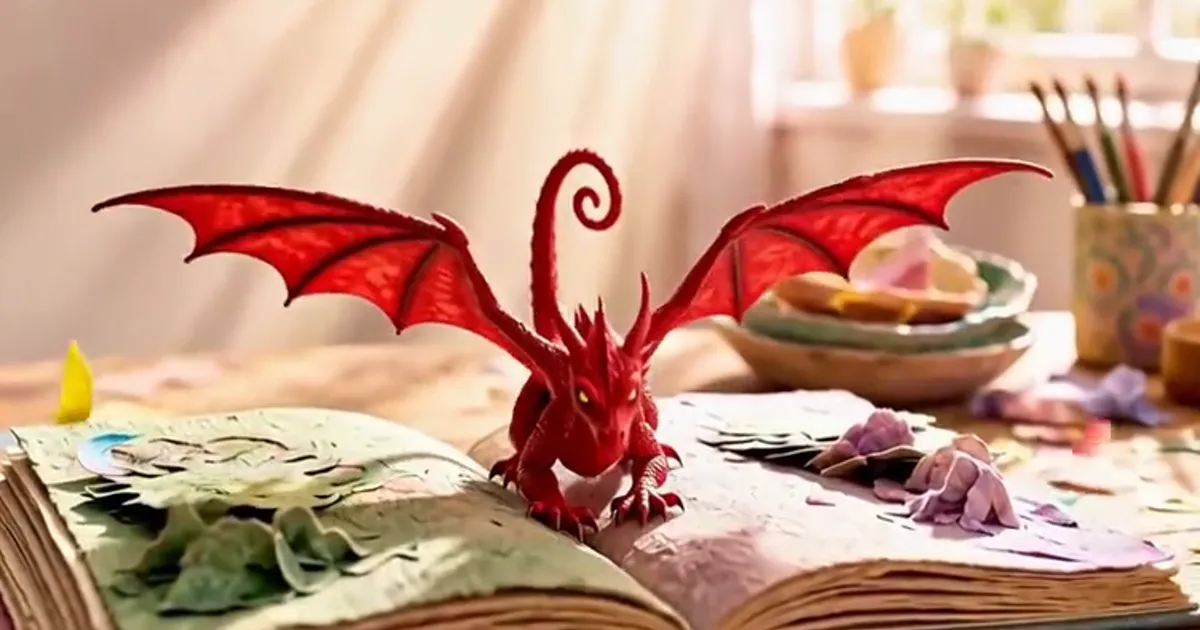
There are three ways to get a longer clip out of Grok Imagine Video: choose a longer duration before you generate, extend a clip you already have, or start a new clip from the last frame of the old one. A single generation can run up to 15 seconds on Grok Imagine Video 1.5, and extending adds 6 or 10 seconds per pass.
A lot of guides still describe a 6-second limit, or 10 seconds as the longest option. Both were true at some point. Neither is the whole picture now.
We ran these routes through the WaveSpeed API that powers GrokImagineVideoAI, so the times below are measured. Where we did not test something, we say so.
Which method should you use?
| You want | Best route | Credits on this site |
|---|---|---|
| 10 seconds, cheapest | Grok Imagine Video at 10 s | 100 |
| 15 seconds in one shot | Grok Imagine Video 1.5 at 480p | 240 |
| 15 seconds at 720p | Grok Imagine Video 1.5 at 720p | 420 |
| 15 seconds at 1080p | Grok Imagine Video 1.5 at 1080p | 750 |
| To keep a clip you already like | Extend it by 6 or 10 seconds | 60 or 100 |
| More than one extension allows | Restart from the last frame and join the clips | 60 per 6-second part |
Decide by what matters most. If you have no clip yet and only need 15 seconds, one long generation is simplest, because there is no join to manage. If you already have 6 good seconds, extending is cheaper than rolling the dice on a whole new clip.
Method 1: Choose a longer duration before generating
This is the easiest fix, and the one people miss because the default is short.
- Open the video generator and pick a model. Grok Imagine Video offers 6 or 10 seconds. Grok Imagine Video 1.5 offers 1 to 15 seconds.
- Open the settings menu and set the duration.
- Write the prompt for the full length. A prompt that describes one small action will often stretch or stall over 15 seconds, so give the shot a beginning, a middle and an end.
A red paper dragon unfolds on the page of an open pop-up book, lifts off in a swirl of paper confetti, circles the sunlit craft table once, then lands back on the book and folds its wings. Slow push-in, warm morning light.
Probar este promptTiming: a 6-second clip from a prompt took between 59 and 120 seconds in our runs on Grok Imagine Video, and 58 to 76 seconds on version 1.5. We have not timed a full 15-second render, so expect it to take longer than those figures.
Method 2: Extend the clip you already have
Extension is what most people mean when they ask how to make Grok Imagine videos longer. You give the model a finished video and describe what happens next, and it continues from there.
Here is a real result. The source was the 6-second paper dragon clip, and the prompt only asked the camera to keep moving and the action to end quietly. The file that came back runs 12 seconds: the original 6, then 6 new ones. It took 81 seconds and cost 60 credits.
To do it here:
- Upload your video in the composer. Choosing a video switches the job to Extend automatically.
- Set 6 or 10 seconds. That number is the length of the new footage, not the total.
- Describe what happens next, rather than repeating the first prompt.
The camera keeps moving forward as the scene continues and the action reaches a quiet ending
Probar este promptThree things we noticed or confirmed:
- The resolution can drop. Our source was 1280×708 and the extended file came back at 752×416. If the final size matters, check the file before you build on it.
- The motion carried across the join. In our test the dragon and the room stayed consistent past the 6-second mark. It is one test, so try a short extension before committing to a long sequence.
- Extending always uses the standard model. Here the job runs on Grok Imagine Video even if version 1.5 is selected, because that is the endpoint that offers it.
How far can you extend?
This is where sources disagree, and xAI's public documentation did not settle it when we checked.
Atlas Cloud's guide, citing Grok's release notes, says the Grok app caps an extended video at 30 seconds in total. The same guide says the API accepts a clip of 2 to 15 seconds, and that the API only sees the clip you send it. If that input limit applies, a 15-second clip plus a 10-second extension gives you about 25 seconds in one pass, and anything longer than 15 seconds cannot go back in.
We ran one extension, from 6 to 12 seconds. We have not tested chained passes, so treat the ceilings above as reported rather than confirmed.
Method 3: Restart from the last frame
When you need more length than an extension allows, you can make each new clip start exactly where the last one stopped. Community guides have described this workaround since the 6-second days, and it still works because it only relies on image to video.
- Save the final frame of your clip. With ffmpeg that is:
ffmpeg -sseof -0.1 -i clip.mp4 -frames:v 1 last.png
- Upload
last.pngto the generator as the opening image and describe the next beat. An image-to-video run took 112 seconds for us and costs 60 credits for 6 seconds on Grok Imagine Video. - Join the parts, once each one has the same size and frame rate:
printf "file 'a.mp4'\nfile 'b.mp4'\n" > list.txt
ffmpeg -f concat -i list.txt -c copy joined.mp4
There is no length ceiling here, but you pay for it in continuity. Each part only sees one frame, so the model has no memory of how things were moving. Expect small jumps in speed, lighting and sound at each join. Cut on an action or a change of angle, and the seams are far less obvious.
Getting a better long clip
- Write in beats. "He walks in, sees the letter, picks it up" holds attention for longer than "a man in a room".
- Keep one subject. New characters that show up late in a shot are where consistency tends to slip.
- Test short. A 6-second draft costs a fraction of a 15-second final at 1080p. Fix the prompt first, then spend.
- Use reference images for repeat characters. If several clips need the same person or place, upload up to 7 images and name them in the prompt. Our homepage examples show how.
FAQ
Can Grok Imagine videos be longer than 6 seconds?
Yes. Grok Imagine Video generates 6 or 10 seconds, and Grok Imagine Video 1.5 generates up to 15 seconds in one run. You can also extend an existing clip.
How do I extend Grok Imagine videos?
Upload the clip, keep the job set to Extend, choose 6 or 10 seconds of new footage, and describe what happens next. The result is the original clip plus the new part.
How do I increase Grok Imagine video length for free?
The Grok app's free allowance changes often, so check the app itself. On this site, the 60 free credits you get at sign-up cover one 6-second clip, which is not enough for an extension as well.
Can Grok Imagine edit videos as well as extend them?
Yes. Editing changes what is already in a clip based on your instruction, and it does not add length. It reads up to 8 seconds of the source video.
Does an extended Grok Imagine video keep its sound?
New clips from Grok Imagine Video come with audio. We checked sound on a standard generation, but not on an extended file, so listen to yours before you publish it.
Ready to try it? Open the generator and start with a 10-second clip, or upload one you already have and extend it.